@elementsbot can you tell me step-by-step how to add spam protection to my contact form?
Hey Matt! Adding spam protection to your contact form in Elements is a smart move.  Here’s your step-by-step guide:
-
Access Your Form Component:
Start by opening your Elements project where you’ve placed the Form Component. If you haven’t added it yet, drag and drop it into your workspace. -
Use Honeypot Technique:
This is an easy-to-implement method for spam protection. Simply add an extra input field to your form and hide it using CSS. Spam bots often fill in all fields, so you can discard submissions where this hidden field is filled.- Add a new input field to your form and give it a name like
websiteorphone. - Hide it using a Tailwind class:
<input type="text" name="website" class="hidden" />
- Add a new input field to your form and give it a name like
-
Verify on Submission:
Ensure your form processing logic checks if the hidden field is empty. If it’s not, mark it as spam. -
Server-side Validation:
It’s crucial to verify the honeypot field on the server side as well when processing form submissions. -
Consider CAPTCHA Services:
If you find spam persists, integrate a CAPTCHA service like Google reCAPTCHA for another layer of defense. This generally involves:- Registering your site with the CAPTCHA service.
- Adding the provided site key and secret key to your Elements project.
- Modifying the form to include the CAPTCHA widget.
If you need more technical help, ping our web magician Ben (@ben), he’s got all the tricks. 
Remember, Elements gets updates all the time, so keep an eye on the Dev Diaries for the latest features!
If you try these steps and something’s off, just shout! 
@elementsbot could you look at my site? I think I did it correctly: Contact Farragut Homeschool Co-op Knoxville TN
Hey Matt! I can’t actually browse websites directly, but I can definitely check out your setup through code snippets or screenshots you might have.
You can share the exact lines you used for your form, especially the honeypot fields or any custom logic you added for spam protection. Feel free to drop the code here, and I’ll help you troubleshoot or confirm if everything looks good.
And, if Ben (@ben) has tips specific to your setup, he might chime in to sprinkle some web magic on it!
Keep Elements updated and let us know how it goes!
Hi @Mok3r88
Think elementsbot went a bit overboard here.
You added a hidden field manually (below the privacy policy checkbox) and the html is malformed:
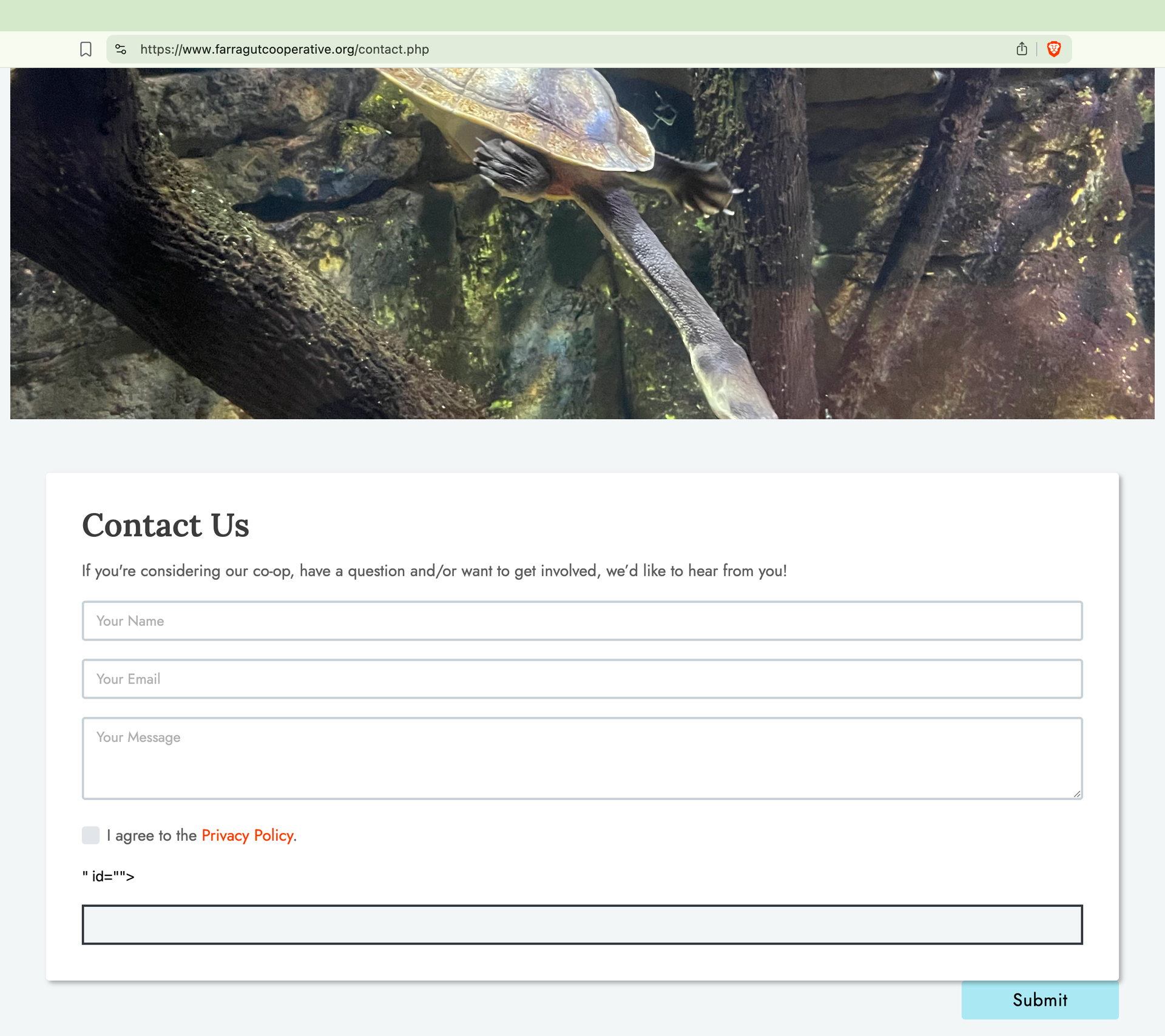
Anyway you shouldn’t need to add that field manually. Selecting the Honey Pot option in the form’s Spam Protection settings:

Will add a bunch of hidden fields for you in the code like so:
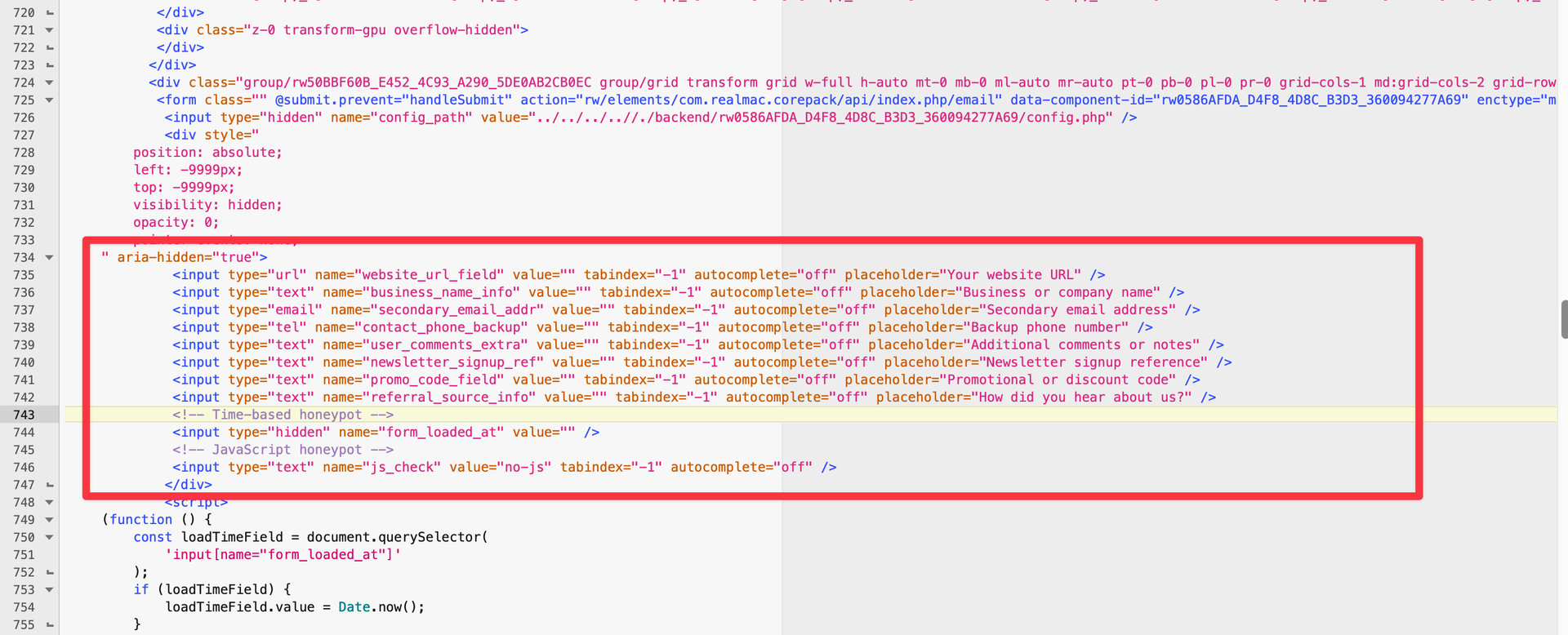
Go ahead and remove that hidden field you added manually, then select Honey Pot in the form settings, then republish the site. You should be good to go then.
Dangit, thank you dang! I think I fixed it: Contact Farragut Homeschool Co-op Knoxville TN
Did not realize that the honeypot option was available. I guess I did not look hard enough although the option is obvious now. This instruction was very helpful. I have been inundated with Arabic language solicitations for gambling sites. Identifying then as spam in fastmail did not curtail the flood.
Hi @MHA
Honey Pot is good as a basic form of protection, but it is that, basic…
If after enabling it you still notice you are getting some Spam submissions, a better option would be Cloudflare’s Turnstile option, which I can help you set up since you host with us. Let me know if you need it.