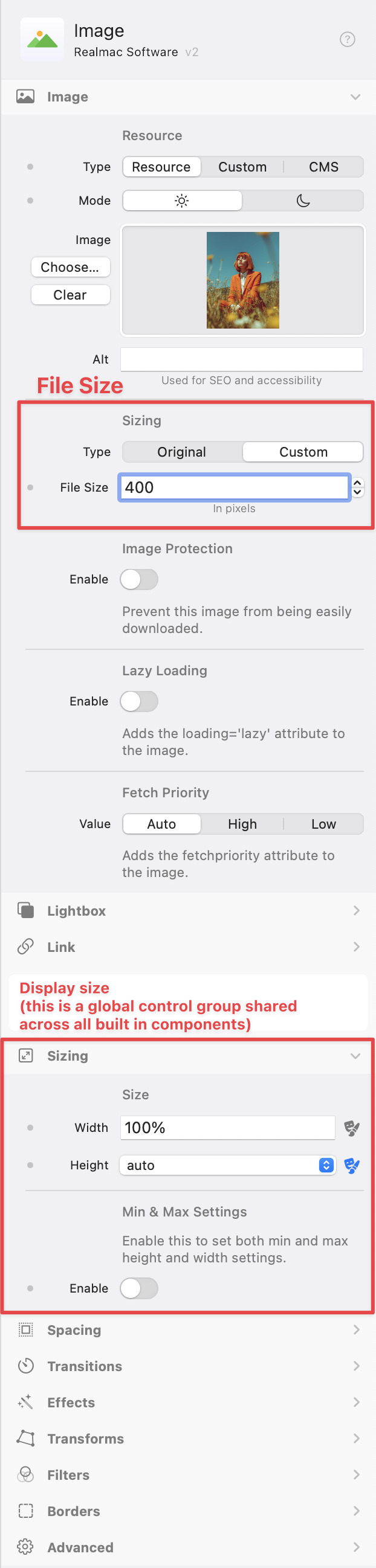
In the inspector for the built-in Image component there is a ‘Sizing’ section and, within the ‘Image’ section a ‘Sizing’ sub-section.
The former does what you’d expect i.e. provides the ability to set the width (and optionally height) of the image. However in the identically-named ‘Sizing’ subsection of ‘Image’ you can choose a type: Original or Custom. If you choose Custom a numeric field appears (with “in pixels” under it) and the field label is “File Size”…?! It would appear that this controls the resolution of the image (which I suppose does have an impact on file size) but it’s not very intuitive.
Perhaps the ‘Sizing’ subsection of ‘Image’ should be re-labelled ‘Resolution’, because that is what’s being directly controlled here - file size is just a side-effect of that, and the pixel is not an appropriate unit of file size! The field label probably shouldn’t be “File Size” either… (maybe DPI? - or whatever measure for pixel density that you prefer)
Until I spotted the ‘Sizing’ section further down I was struggling to understand what the Image ‘Sizing’ sub-section was doing (certainly not re-sizing the image!).