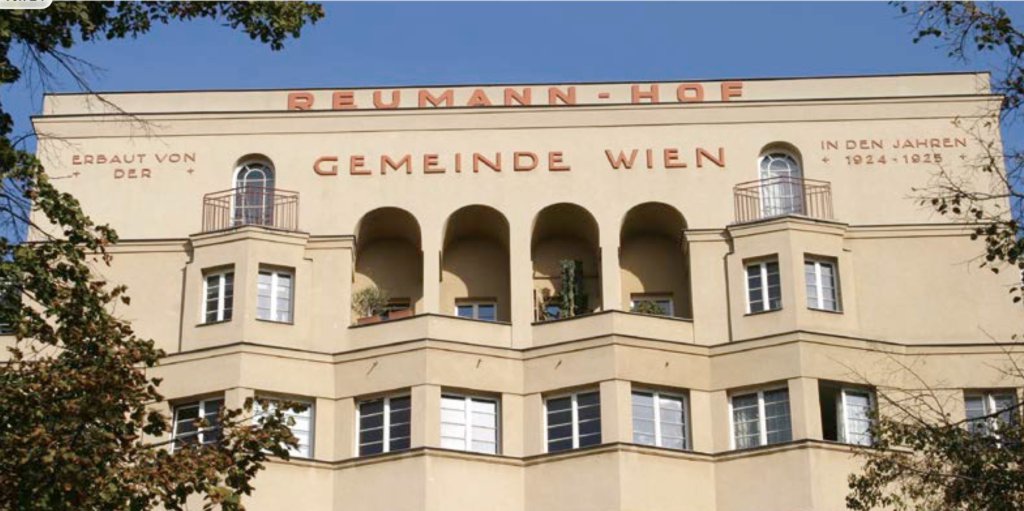
However, images sometimes do not render in the CMS item in the browser, although they are shown in the CMS online preview. This is not really consistent, sometimes it works, sometimes not.
In contrast, images added in the Elements App with a link path such as „../../resources/topics/digital-twin.jpg“ render consistently.
In both cases, the image are correctly uploaded to the corresponding resources folder. This inconsistent behaviour makes online editing a kind of headache. Any clues, what I might possibly doing wrong?
You may notice different versions of „examples“, in particular the one with „array“ as a topic title. I created this as a new file in the online editor, since the original one was not working with the image: urban planning | topic . When I entered the topic title, it switched to array. I did not yet find the time to take it offline again. The whole thing is still work in progress, working online while traveling…
On another note, I originally thought of „nesting“ the examples as a collection on the theme-pages, instead of the 3 links that are now provided on the themes pages: Theme
Would this „nesting“ of 2 collections be possible in the CMS? I could not really find a way to do this.
And a final question before embarking on my flight home: Would there be any possibility of creating a menu of collection item pages?
I had quickly assembled this website for a workshop, where it proved quite useful since MS Edge provides quite good Arabic translations in the browser.
All images now render correctly. However, for 2 topics in the online version the direct links to the resources folder in the CMS online did not work. I had to add new md-files with the image links through the Elements App…
Moreover, the example cards on the examples page do not render in the online preview and are only shown in the published online version.
For future work, I would really be grateful for a hint how to avoid these tedious inconsistencies?
I took a look at your project file and noticed you have set relative paths for the images, e.g. ../../resources/topics/seoul-squashed.jpg. Instead of relative paths, you can simply enter the resource folder name and file name, e.g. topics/seoul-squashed.jpg.
The CMS will automatically prefix the correct path to your resources folder for you. This way you can display the CMS items on any page and the CMS figure out the relative path for you.
I’m still struggling to understand this issue. Are you saying that adding an image to a topic in the Online Editor is not working?
The Online Editor will always set a full URL to the selected image, so something like https://projects.frank-samol.de/resources/topics/img-0676-6a2db64244dc1.jpeg.
Thanks a lot for coming back to me. I am a bit slow in my response, since I am working on some other issues.
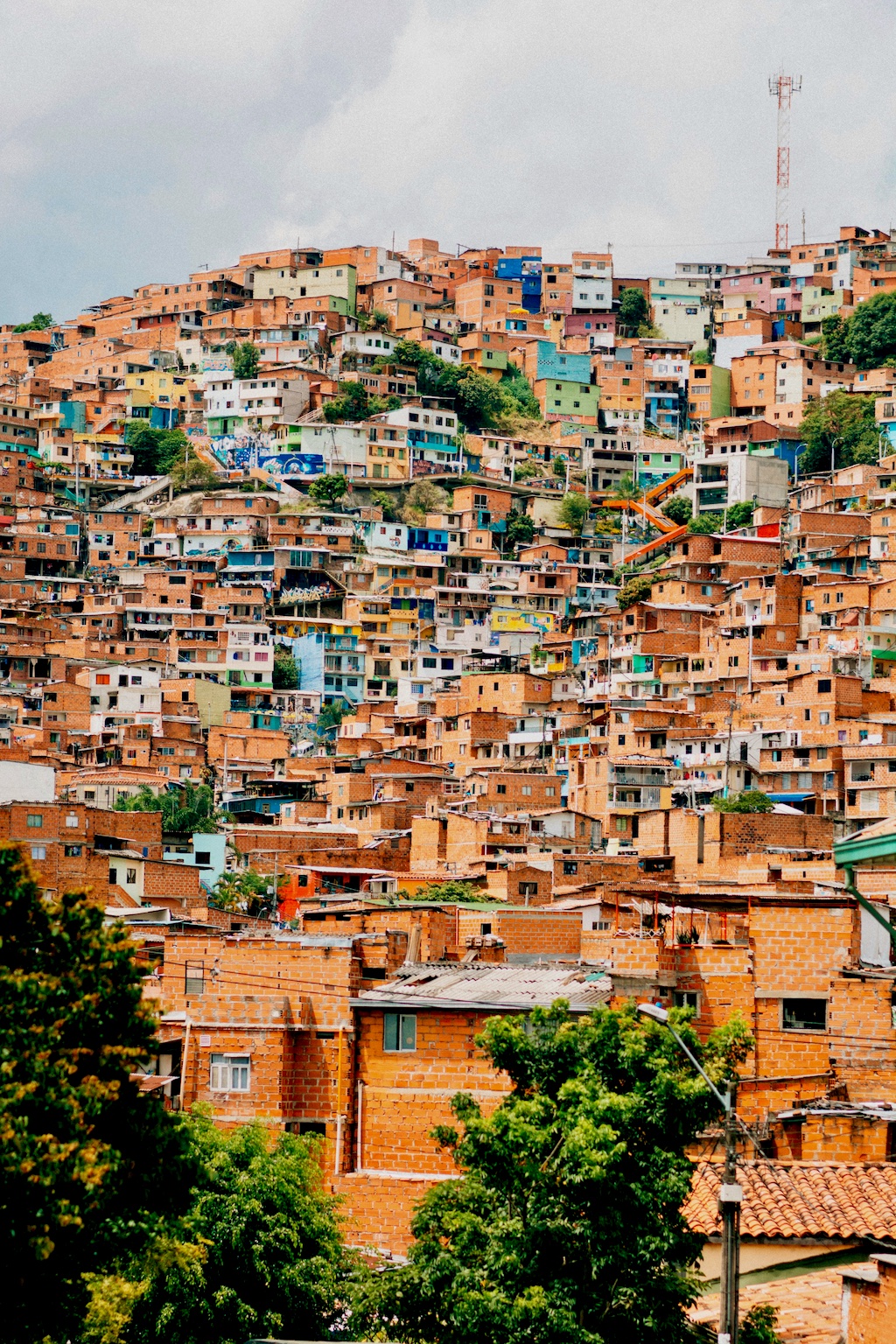
This is actually the inconsistency I faced. In some cases when creating a new md-file in the online editor, for me quite erratic, the image file path (such as: https://projects.frank-samol.de/resources/topics/medellin-squashed.jpg) did not work, the image did not render in the browser, after publishing. I then deleted the online md.file, created a new md-file in the Elements app and added the image by dropping it into the front matter, which creates the relative path (src: ../../resources/topics/medellin-squashed.jpg). After re-publishing, the image rendered correctly and was added to the online editor with the relative path.
After reselecting the image with the complete URL in the online editor, which I just did, everything seems to be ok.
As a result, I now have a mixture of relative file pathes and complete URLs for the images in the online editor. Since the project has meanwhile fullfilled its purpose to serve as an input for a workshop, I will probably leave it as it is. It would just be good to know how to best this inconsistent behaviour for future projects. Would it be better not to use the drag and drop option for images in the front matter that creates the relative path?