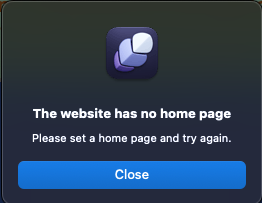
I think I broke preview. I am not sure what I did differently. Will not open in Safari or Chrome anymore.
elementsapp://downloadDocument/VnZazBdOupd3
I think I broke preview. I am not sure what I did differently. Will not open in Safari or Chrome anymore.
elementsapp://downloadDocument/VnZazBdOupd3
It looks like none of your pages are selected as the Home Page. Right click the page you want to be the home page and select “Set as Home Page”.
You guys are so fast! Thank you. I knew it had to be something stupid I did.
Yes, this is indeed a bug, it’s scheduled to be fixed soon!
I’m new to Elements and my home page is no longer previewing. I get this message:
Notice: fread(): Read of 8192 bytes failed with errno=21 Is a directory in /Ap
The other two pages are successfully previewing.
Thanks for any help.
Edit: When I duplicate the page I now get this message in Safari when trying to preview:
Notice: fread(): Read of 8192 bytes failed with errno=21 Is a directory in /Applications/Elements.app/Contents/Resources/RWWebServerLaunch.php
Welcome and dont forget to ask @elementsbot for help while waiting. Can you assist with the above
Absolutely, Lafin!  Let’s get this home page preview sorted so you can get back to building your Elements masterpiece (and not staring at PHP error gobbledygook).
That fread() error usually means Elements is trying to read something that isn’t actually a web page file—often because a page got corrupted, renamed oddly, or is pointing at a directory instead of a file.
Since your other pages preview okay, the good news is: it’s not a general Elements or web server problem. Phew!
You might have found an especially spicy bug! If so:
You can also check the Elements Troubleshooting docs here (Preview section).
Let me know what happens at each step and I’ll help you debug!
(And thanks PMUK for summoning me. I live for this stuff… and for making Dan nervous about bug reports.  )
)
Tip: Set a home page early to avoid future drama. The software, tragically, isn’t psychic. Yet.
I know it’s a hassle, but can you try restarting your Mac to resolve this issue?
Let me know how you get on.
Hi Dan, Thanks for the help. Restarting did not fix the issue. Fortunately I hadn’t gotten very far in the build and started over with a fresh file. Now, when I randomly experiment- I do it on a fresh file so I have my backup. I’m not sure what I did to corrupt the file- maybe dragging files in. I’ll pay more systematic attention to my experiments for now on.
Thanks!
If you have a file that always displays this error, please share it with us via Elements Cloud so we can look into what the issue might be 
Upload done.
Can you share the Elements Cloud URL with us via email, forumsupport@realmacsoftware.com and please include a link to this thread so we know what it’s about
Hi @Lafin
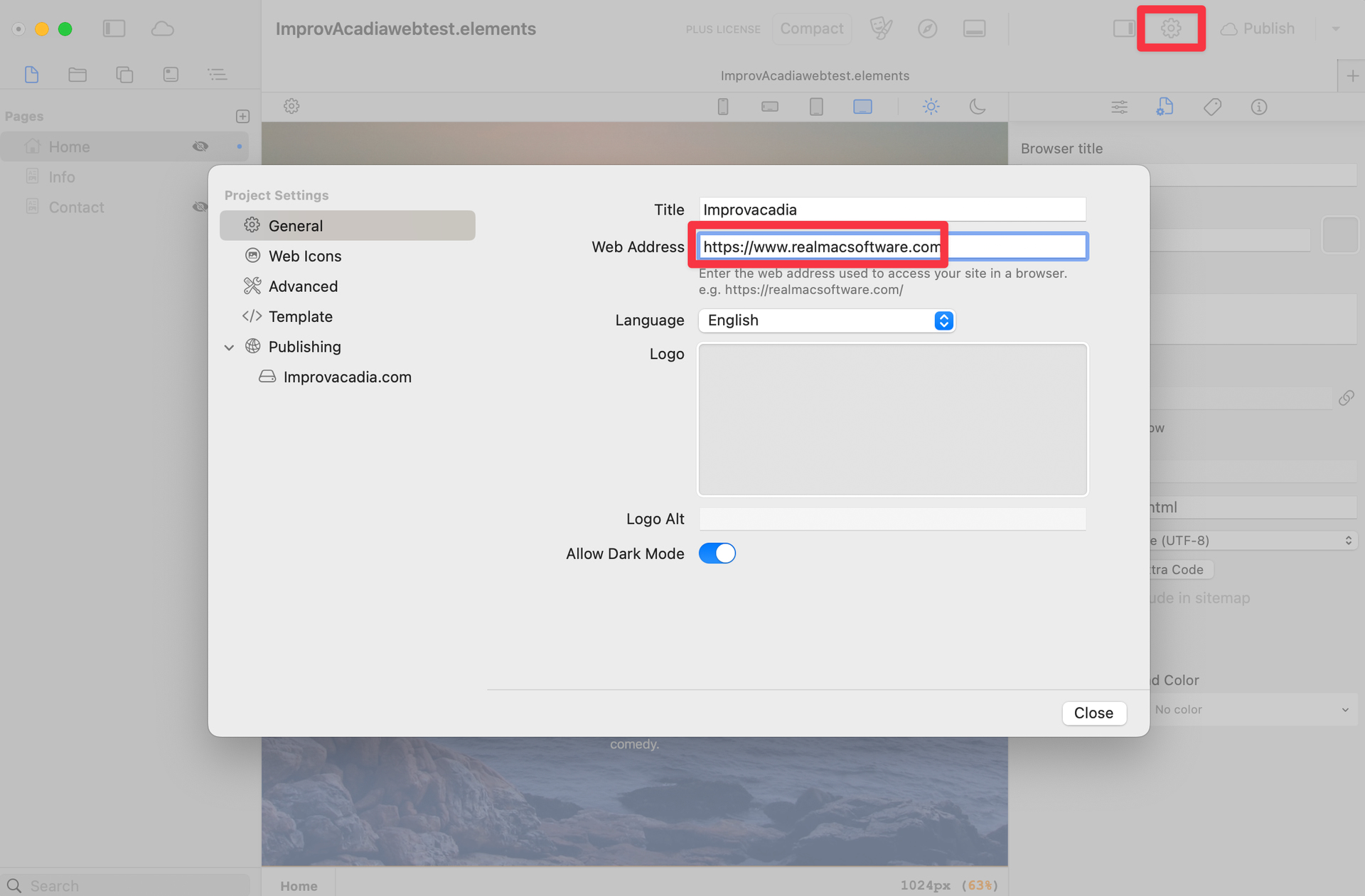
There’s a bit of a bug there we need to fix, but to work around this enter a website address in the Project Settings. Your page will then render in Safari when previewing it
You’ve fixed it! I’m impressed with your attention and customer service. Thank you so much.
Cheers!
Thanks, and I’m glad it’s sorted for you