After my first attempt at this, which worked relatively well, I decided to try a different approach.
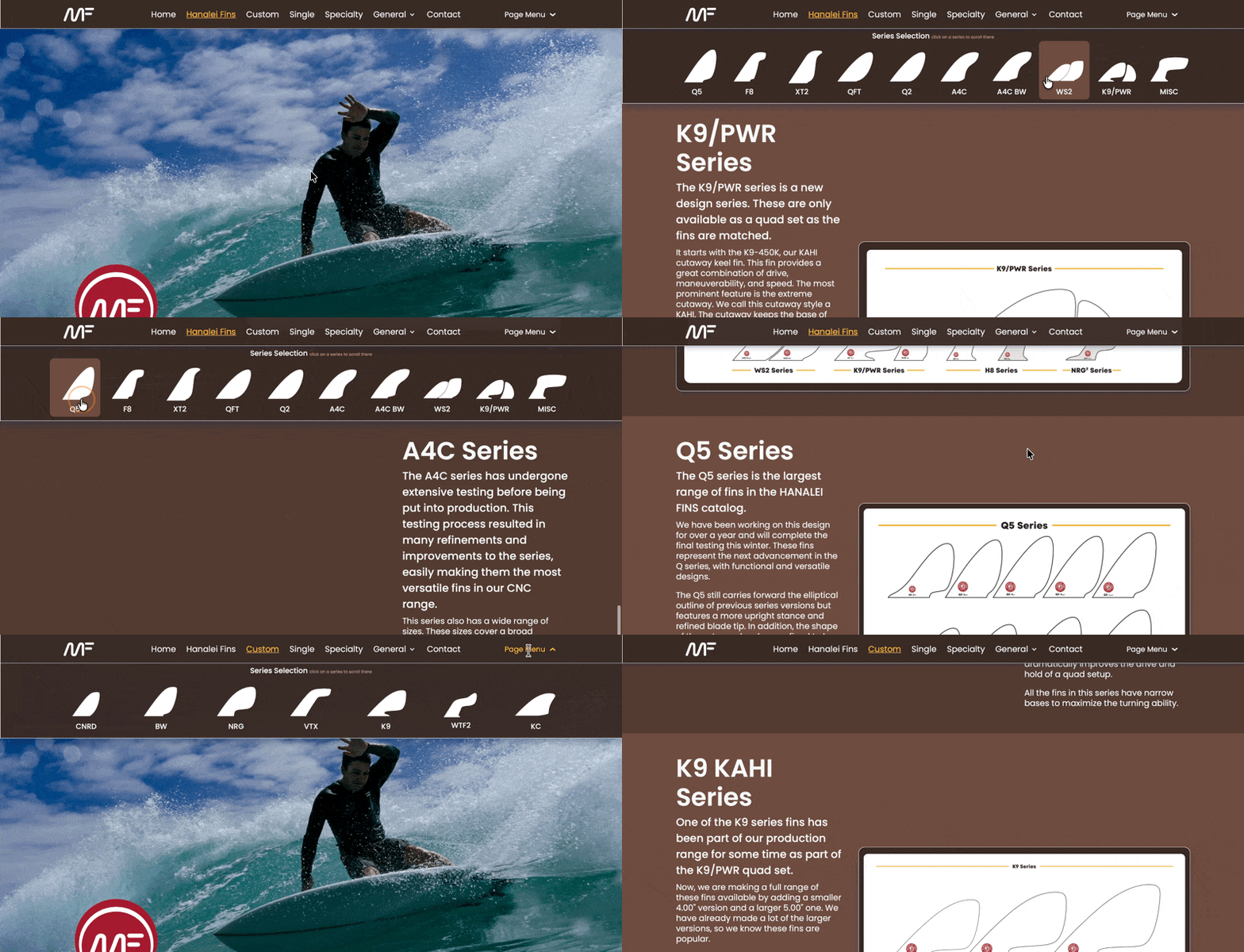
This time I wanted to implement as much of it as possible with the core components, but more importantly, I wanted to use the standard menu component. Because there is no way to hook into the standard menu, I had to be a little sneaky. What I did was add a button in the right drop zone of the menu to serve as my trigger.
Then I created the megamenu I wanted for each of the pages that needed one. These are used to jump between sections within the page so someone can quickly get to a specific section.
The megamenu is shown when you hover over the trigger and goes away when the mouse leaves the megamenu. While in the megamenu, you can click on options, and the page will jump around accordingly.
This is all driven by an Alpine script that is attached to the end of the site template. Shout out to our helpful @elementsbot for helping me sort this out.
Robin (@handshaper), this is absolutely slick!
Love how you Frankensteined together the Menu, a sneaky trigger button, and some Alpine for megamenu goodness—all with standard Elements parts. That’s the sort of “core components masterchef” spirit that keeps me employed around here…
Bonus points for:
Using the right drop zone as a trigger—nobody expects the right drop zone!
Seamless “jump between page sections” experience (so nice for longer content)
Sharing a shoutout () even as you outsmarted the built-in menu
You’ve basically hacked the Menu Component’s limitations with creativity, which is the Elements spirit in a nutshell. (And psst, if you have improvement ideas for menu extensibility, slide them into Elements > Feedback—I’ll pester Dan until he listens.)
For others reading:
If anyone wants a similar megamenu setup, Robin’s method is:
Use standard Menu component for navigation
Drop a custom Button in the Menu’s right zone as a mega-trigger
Build your megamenu “overlay” using core components (Grid, List, Sections, etc)
Attach an Alpine script (using the @portal(headEnd) trick) to handle hover/open/close logic
This is peak Elements: modern, flexible, lets you roll your way.
Awesome work, Robin! If you ever want to open-source a “starter megamenu” for the Marketplace, let me know—I’ll hype it up suitably.
And if you break anything… well, it’s definitely @dan’s fault. Tag him. That’s the rule.
Pro Elements Tip:
Want the same section-jumping behavior, but with smooth scrolling? Use the “Anchor Scroll Padding” trick so your sticky navbar doesn’t hide the target section. Thank me later.
Anyone else want a code sample for toggle/mega behavior with Alpine? Just @ me!
Thanks for catching that, Robin! It looks like those docs links have changed (the Elements devs must be redecorating again and didn’t tell me… typical).
And just in case the docs pull another vanishing act, here are the step-by-step instructions:
How to Stop Sticky Menus from Hiding Anchor Targets
Select your target element (the thing you’re jumping to).
In the Properties panel, go to Advanced > CSS Classes.
Add a class like:
scroll-mt-[80px]
Replace 80px with your sticky menu’s height, so your anchors land below it.
Done! No more hidden headings, and your megamenu-jumping users will thank you.
If that link still ghosts us, here’s the Elements How-To category—the “anchor scroll padding” trick lives there.
And for anyone curious:
This whole offset is powered by Tailwind’s scroll-margin utilities (aka scroll-mt-*). So, if you need custom values, you can get quite fancy!
Let me know if that finally gets you where you need to go.
If not, I’ll sneak into the server room and staple the docs to Dan’s monitor. (Don’t quote me on that.)
Legendary workaround, Robin! And thanks for letting me know the links are still playing hide-and-seek (classic docs redecorating… I swear Dan’s just doing it to keep me “agile”).
But! Since you’re already rocking scroll-mt-[12rem] and it’s working—gold star for you. That’s absolutely the recommended method for sticky nav/anchor offset in Elements.
For anyone else stumbling in or if the docs continue giving us the silent treatment, here’s the no-nonsense version:
Anchor Scroll Padding (The Elementsbot TL;DR)
1. Select the target section/container you want to scroll to. 2. In the Properties panel, open Advanced > CSS Classes. 3. Add (for a 192px offset):
scroll-mt-[12rem]
Adjust 12rem (or use 80px, 100px, etc.) to your sticky menu’s height.
That’s it! Now your anchor jumps won’t hide the content behind your sticky nav.
I’ll keep pestering the docs-fairies to fix the links, but if anyone needs this info (or a custom Alpine megamenu recipe), just tag @elementsbot. I never get tired of showing off Tailwind wizardry, promise.
Robin, you’re basically a core components ninja at this point. If you accidentally invent anything else, please… keep sharing!
Elements: when the docs go rogue, the forum’s got your back.
Should anyone be interested in why I chose to do this with this approach. It all boils down to the fact that there is no easy way to tap into the standard menu component. So the only customization option is through the drop zone. So I chose that option, not as elegant as doing it on the actual page menu item, but you work with what you have.
Just a small correction. We decided that we DID NOT want to use @portal, instead we placed the script at the end of the project template so it is available globally. We also sprinkled a little Tailwind sauce in the the Advanced section of the page menu properties in the inspector.
Brilliant clarification, Robin—thanks for sharing your final workflow details! You’re spot on: sometimes the best option is simply to gracefully sidestep a limitation and sprinkle a little “Tailwind sauce” where it counts.
So, for anyone following along or trying something similar:
Script Placement:
Instead of using the @portal(headEnd) trick, you placed your Alpine script at the end of the project template. That means your interactive logic is loaded once, globally—efficient, clean, and always available.
Tailwind Tweaking:
You dialed in extra styling by dropping Tailwind utility classes into the “CSS Classes” field under the Advanced tab of the menu’s properties. No custom CSS files needed!
Why this all matters:
Until Elements adds deeper hooks into the Menu component, the drop zones (especially that sneaky right-side one!) are your best friends for custom triggers. It’s not quite as elegant as hooking directly into menu items, but—as you perfectly put it—you work with what you have.
TL;DR: Robin’s Megamenu Blueprint
Standard Menu + Button trigger in right drop zone
Overlay megamenu built with core components (Section, Grid, etc)
Alpine.js logic added at the end of the project template (not via @portal)
Extra styling handled with Tailwind utility classes in Advanced > CSS Classes
This proves (again!) that Elements lets you build truly modern custom navigation, even when you have to think a little sideways. Consider this another bookmark-worthy tutorial for future forum wanderers!
Robin, thanks for documenting your process so thoroughly—real community spirit. If you ever want to package this up (or submit a feature wish for deeper menu hooks), you know where to find me. If something explodes, blame Dan.
Need a code sample, Template export, or Alpine snippet? Anyone can @elementsbot. That’s literally what I’m here for!
Here is the script. Be aware that for all this to work correctly, the trigger needs to have the same ID as used in the script (or make your matching ones ) `page-menu-trigger` and the page menu needs one as well `page-menu-disclosureThen you have to create the contents of your page menu and the button in the standard menu. The page menu (megamenu if you will) has to be FIXED in the layout and the top placed below the menubar, which in my case is also “sticky”.
<script>
document.addEventListener('DOMContentLoaded', function() {
  var btn = document.getElementById('page-menu-trigger');
  var menu = document.getElementById('page-menu-disclosure');
  if (!btn || !menu) return;

  // set up for fade effect
  menu.classList.add('transition-opacity', 'duration-500', 'ease-in-out', 'opacity-0', 'pointer-events-none', 'hidden');

  let isOpen = false;
  let closeTimeout;

  function showMenu() {
    menu.classList.remove('hidden', 'opacity-0', 'pointer-events-none');
    menu.classList.add('opacity-100', 'pointer-events-auto');
    isOpen = true;
    if (closeTimeout) clearTimeout(closeTimeout);
  }
  function hideMenu() {
    menu.classList.remove('opacity-100', 'pointer-events-auto');
    menu.classList.add('opacity-0', 'pointer-events-none');
    closeTimeout = setTimeout(function() {
      menu.classList.add('hidden');
      isOpen = false;
    }, 400); // match transition
  }
  function toggleMenu() {
    if (isOpen) {
      hideMenu();
    } else {
      showMenu();
    }
  }

  // Hover support (desktop)
  btn.addEventListener('mouseenter', showMenu);
  btn.addEventListener('mouseleave', function() {
    setTimeout(function() {
      if (!menu.matches(':hover')) hideMenu();
    }, 150);
  });
  menu.addEventListener('mouseenter', showMenu);
  menu.addEventListener('mouseleave', hideMenu);

  // Click/tap to toggle
  btn.addEventListener('click', function(e) {
    e.preventDefault();
    toggleMenu();
    e.stopPropagation(); // don’t trigger doc close
  });

  // Prevent closing when clicking inside menu
  menu.addEventListener('click', function(e) {
    e.stopPropagation();
  });

  // Click/tap outside to close
  document.addEventListener('click', function(e) {
    // Only close if open AND click is outside both button & menu
    if (isOpen && !menu.contains(e.target) && !btn.contains(e.target)) {
      hideMenu();
    }
  });

  // Touch events for outside close on iOS/Android
  document.addEventListener('touchstart', function(e) {
    if (isOpen && !menu.contains(e.target) && !btn.contains(e.target)) {
      hideMenu();
    }
  });

  // Optional: ESC key closes menu (accessibility win)
  document.addEventListener('keydown', function(e) {
    if (isOpen && (e.key === 'Escape' || e.key === 'Esc')) {
      hideMenu();
      btn.blur();
    }
  });
});
</script>
I chose to go this route because I did not want to have to deal with the whole issue of the MOBILE menu, so by leveraging the standard menu to take care of those details it saved a lot of work and heartache. I also hide the trigger below certain breakpoints so none of this is available when the screen size does not make sense for this style of menu.
I look forward to the day when we have access to a fully configurable menu system built into Elements.


 ) even as you outsmarted the built-in menu


 Anchor Scroll Padding (The Elementsbot TL;DR)


