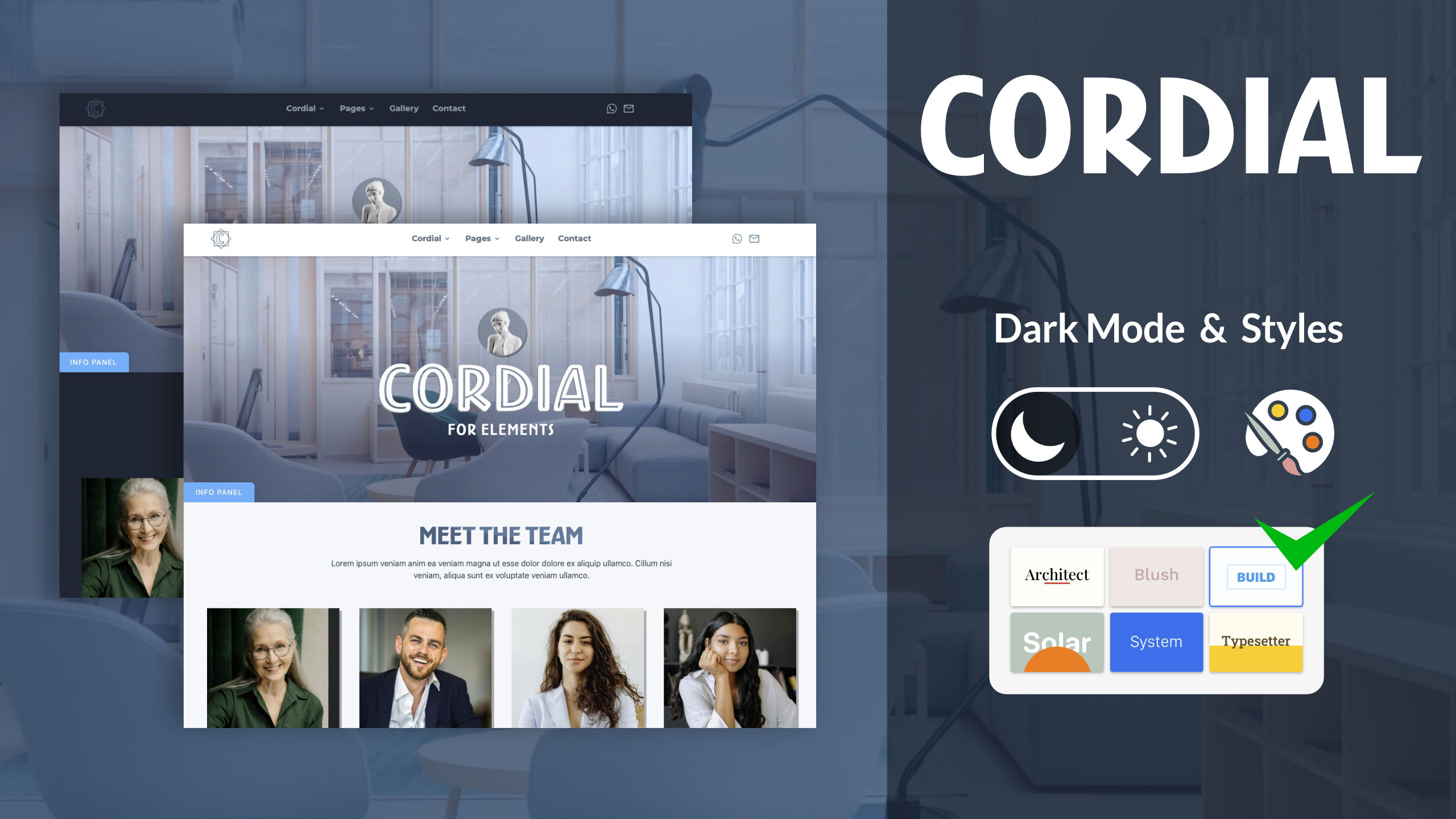
HI guys, I am pleased to announce the release of the CORDIAL template for Elements.
This project follows the positive reception of its predecessor, the CORDIAL theme for Rapidweaver Classic. Due to user requests for a version compatible with Elements, this new template has been developed!
While it maintains the identical, proven layout and visual style of the original, CORDIALfor Elements is a new product built specifically for the Elements framework. It offers a significantly expanded set of customization options and has been engineered to facilitate a more efficient and straightforward workflow.
Project pages:
Home, Pages, Team, Contact, Titles, Portfolio, Gallery, Prices, Helps, Dark ( dark mode simulation) and ‘Starter Page’, your starting point to launch your website. Plus two technical pages and term & Privacy
Elements has been a fantastic discovery, offering a wide array of animation tools that feel familiar and powerful
I find Elements’ good tools, allowing me to create some things I previously achieved with specialized HTML software. It’s far more than a site builder.
Posted to a new topic prior to seeing your post here announcing Cordial. I just purchased it earlier today and cannot seem to customize it. It took an hour to remove the header video background and then once I did, it shows a photo of an office that I can’t select or remove. Even dropping a new photo in the inspector, just puts it over top of the office photo. Do you have documentation on how to edit the different components in your theme?
HI Bob, I’m sorry if you’ve wasted your time, but I’ll try to help. I assume you can’t drag images and boxes into the preview. Right?
I’ve commented on the project structure in detail so you can find what you need without touching the preview ( edit image for images, edit value for any relevant editing etc).
This applies to all projects with nested elements. Touching elements or dragging and dropping is convenient, but it’s not always precise.
If I’m not mistaken, the problem is finding the right element, and you can search for it by name.
open the page and Find “edit” or “edit image” see the picture
There are no specific instructions for the project. It’s made with the standard Elements tools, but some elements are nested.
This is not a rule for my project, but for any nested structure that contains absolutely positioned elements (and this is a limitation in WYSIWYG editing) and it is also valid for absolutely positioned text, it becomes difficult to edit it in the preview but Elements offers alternative (and more precise) tools
If you need help, send me a PM too
let me know!
____
@dan access to nested elements in absolute positions can be improved? including nested text in absolute positions. I’m playing around a lot with complex animations but if I use multiple text layers in absolute position to change the content I have to move them out temporarily, it’s not a problem but it’s not intuitive.Any tools that allow editing without touching the text box in the WYSIWYG preview are welcome.
Thank you for the very detailed response. I apologize if I came off as a little gruff. I was just a little frustrated. You do beautiful work. I’m just not a coder so I like being able to just click, drag, drop, etc. I will try your suggestion and circle back if I have any questions. Thanks again.
Bob Thanks, let’s say that to work on professional projects, you also need to use the tree, and sometimes the preview isn’t enough. It’s also an opportunity for me to understand how to improve the project, and for RMS to improve the management of elements in preview (if nested).
In any case, you don’t need to be a programmer ; just use the native Elements tools
I’m seeing the benefit of the “tree”. I’ve gotten so used to working in Classic and Foundry 3 that I need to set that aside and really dig into Elements. I’m grateful for how helpful and responsive you and other developers are to folks like me. If I have more questions as I work on the project and will circle back. Thanks again.
Cordial Scripts: Parallax + Animation classes for Modal Standalone Custom Components: Four scripts ready to use in any project.
Each component includes its own easy-to-use options panel, giving you more flexibility and control.
Core project + Progress Bar + Privacy Pop-Up + Fade-In Body + Back to Top Button.
BTW: Customers have already received the email with the update and instructions to upgrade their components. For any questions, feel free to contact me.
Options: Home Icon:
The Home icon changes thickness, size and position, Turn On /Off Home Label:
Set the starting point text (e.g. “Home” or “Wonder”). Path Offset:
Choose which URL level starts your breadcrumb. skip top folders with ease. From Root to Level5. Exclude URL Levels:
Hide specific folders or pages (e.g. menu, categories) from the path.
This option is perfect if you’re planning a multi-site site and want the breadcrumb to show the common root. Typography:
Set font, size, weight, spacing, and case for perfect readability. Colors:
Color for breadcrumb links and separators. Separator:
Pick from different symbols / & › More details here
✓ Works in any project — just drop it in, no setup needed.
BTW: Customers have already received the email with the update and instructions to upgrade their components. For any questions, feel free to contact me.




 also in


 ; just use the native Elements tools