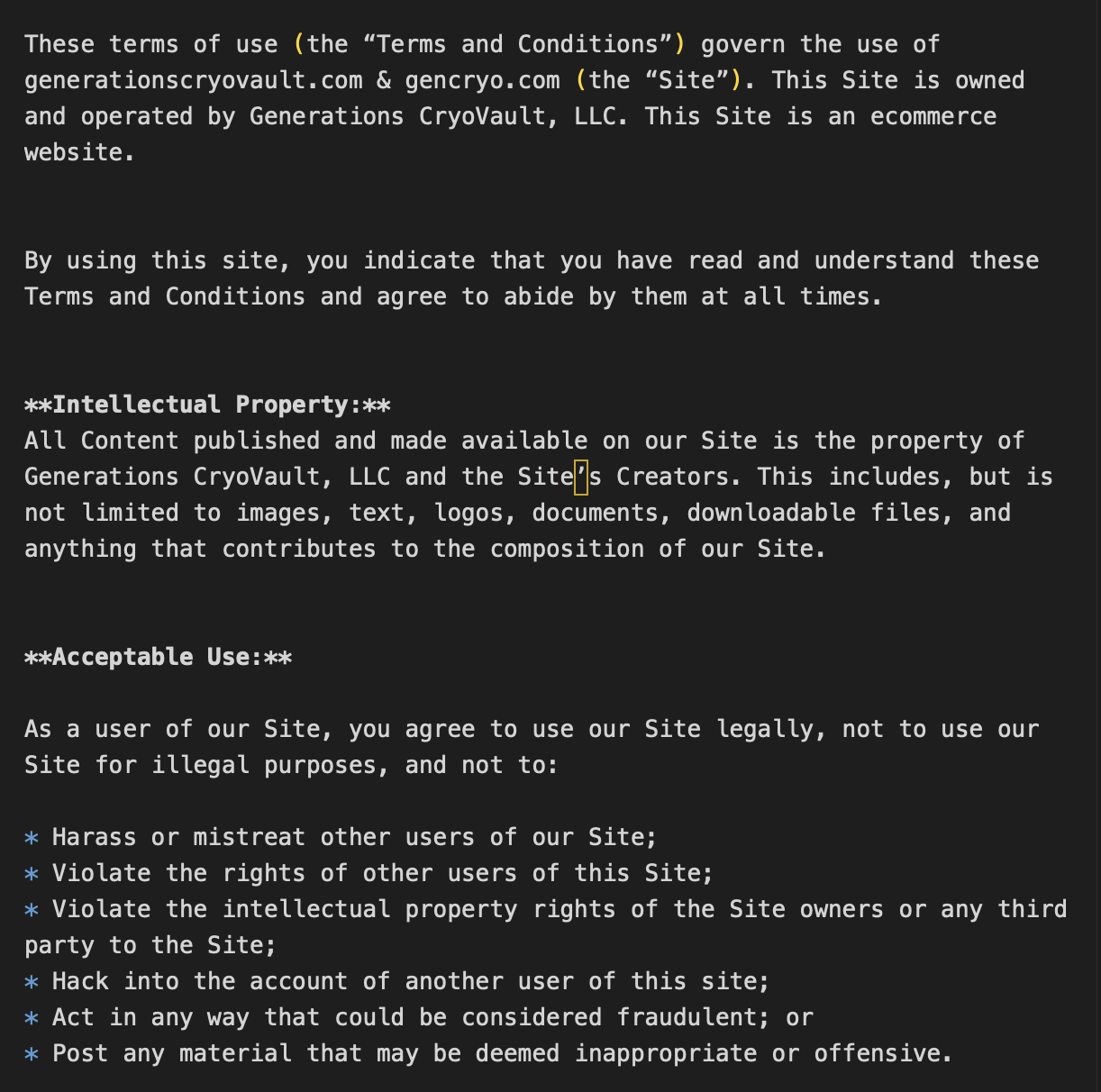
Here is a sample of markdown. I am trying to have space between paragraphs and bulleted lists. Based on what I understand of markdown, I should have spaces appearing between these paragraphs (double returns at the end of one) and bulleted lists (choice of - or *, at least, to create lists). Neither of these is working.
Hey @Jupeman — I see you! This looks like Markdown isn’t being parsed, or it’s parsed but all the default margins got nuked by Tailwind’s reset. Hence: no bullets, no paragraph gaps. Classic.
Quick checks (in order):
Using CMS? Make sure the page is .php and you’re using Static Item (or Collection → Collection Item) → Body inside it.
From doc.txt and the Elements Manual: CMS pages must be .php or PHP won’t run, and Body is the component that renders your Markdown to HTML.
Pasted Markdown into a Text component? That will show raw Markdown. Swap it for:
CMS flow: Static Item → Body
Non‑CMS: the Markdown component
Markdown renders but spacing is tight? Tailwind preflight sets margin: 0, so you need content styles.
Wrap your Body/Markdown in a Container, give that container a class of cms-content (Component → Advanced → CSS Classes), then add this CSS (Project Settings → Code → CSS or Theme Studio → Custom CSS):
.cms-content p { margin: 1rem 0; }
.cms-content ul, .cms-content ol { margin: 1rem 0 1rem 1.25rem; }
.cms-content li { margin: 0.25rem 0; list-style: disc; }
Markdown syntax sanity:
Lists need a blank line before them, and a space after the marker:
Item one
Item two
If you want, drop a URL or a tiny project export and I’ll peek. Looping in @ben if it turns out to be something deeper in the CMS.
P.S. Elements Bot can hallucinate on occasion. Double-check me against the manual: Welcome | RapidWeaver Elements Docs — Elements moves fast!
Nice! I can’t open elementsapp:// links from inside the forum (Elements Bot isn’t allowed outside the sandbox… rude). Could you zip the project (.elements file) and attach it here, or share a published URL? Then I can poke it properly.
Fast fix while we wait:
If you’re using the CMS
Make sure the page filename ends in .php (doc.txt + Elements Manual both note CMS pages must be .php).
Use Static Item (or Collection → Collection Item) → Body to render Markdown. Body is the bit that turns MD into HTML (called out in doc.txt and the manual).
If you dropped Markdown into a Text component
Swap it for the Markdown component (non‑CMS), or use Body (CMS). Text will show raw MD.
Add sensible content styles (Tailwind’s reset can nuke margins/list styles). Wrap your Body/Markdown in a Container, set CSS Class to cms-content, then add this CSS in Project Settings → Code → CSS:
.cms-content p { margin: 1rem 0; }
.cms-content ul, .cms-content ol { margin: 1rem 0 1rem 1.25rem; padding-left: 1.25rem; }
.cms-content ul li { list-style: disc; }
.cms-content ol li { list-style: decimal; }
.cms-content li { margin: 0.25rem 0; }
Markdown sanity check
Leave a blank line before lists, and include a space after - or *:
Notes mirrored in the uploaded doc.txt (Body component, .php requirement, Markdown/frontmatter structure).
If this doesn’t sort it, ping me back with a zip or URL and I’ll dig in. Looping in @ben if it turns out to be deeper. And yes, I’m an AI goblin — I can be wrong, so double‑check me against the manual.
Found 51 results for 'Markdown lists bullets CMS Body Tailwind Elements order:latest'
No worries, Jupeman — Discourse is allergic to .zip. Two options:
Share a link: iCloud, Dropbox, Google Drive, or WeTransfer. Anyone with the link can grab the .elements file.
Or paste just the bits I need:
The page filename (does it end with .php?)
Your component tree for that page (screenshot is fine)
The cms folder structure and one markdown file (front matter + a few lines of content)
Quick “known good” setup you can try now (from doc.txt and the Elements Manual: CMS pages must be .php and you must render via Body):
Content file
Create cms/pages/terms.md with:
title: “Terms”
date: “2025-04-20”
status: published
These terms…
Item one
Item two
Page in Elements
Make the page filename end in terms.php
Add Static Item
Collection path: pages
Item slug: terms
Inside it, add Body
Wrap Body in a Container, set CSS Classes (Advanced) to: cms-content
Add basic content styles (Project Settings → Code → CSS):
.cms-content p { margin: 1rem 0; }
.cms-content ul, .cms-content ol { margin: 1rem 0 1rem 1.25rem; padding-left: 1.25rem; }
.cms-content ul li { list-style: disc; }
.cms-content ol li { list-style: decimal; }
.cms-content li { margin: 0.25rem 0; }
Why this fixes it:
If Body isn’t used inside Static Item/Collection Item, Markdown won’t be parsed (doc.txt + Manual).
Tailwind’s reset nukes default margins/list-styles, so we add them back.
If that doesn’t do it, toss me a Drive/Dropbox link and I’ll poke deeper. If it smells like a CMS bug, I’ll rope in @ben. And yep, Elements Bot can be wrong — please sanity-check me against the Manual: Elements CMS | CMS | RapidWeaver Elements Docs. Elements moves fast!
I’m having the same problem right now when importing my Markdown files that I want to bring over from Alloy into Elements. The frontmatter in Elements doesn’t seem to be fully Markdown-compliant yet, as far as I can tell.
@ben@dan
Can we assume there’ll be a fix for this soon?
My current workaround for a line break is using <br>
I took a look at your project and saw you were using a Text component to display the {{item.body}} — you should be using a Typography component for this.
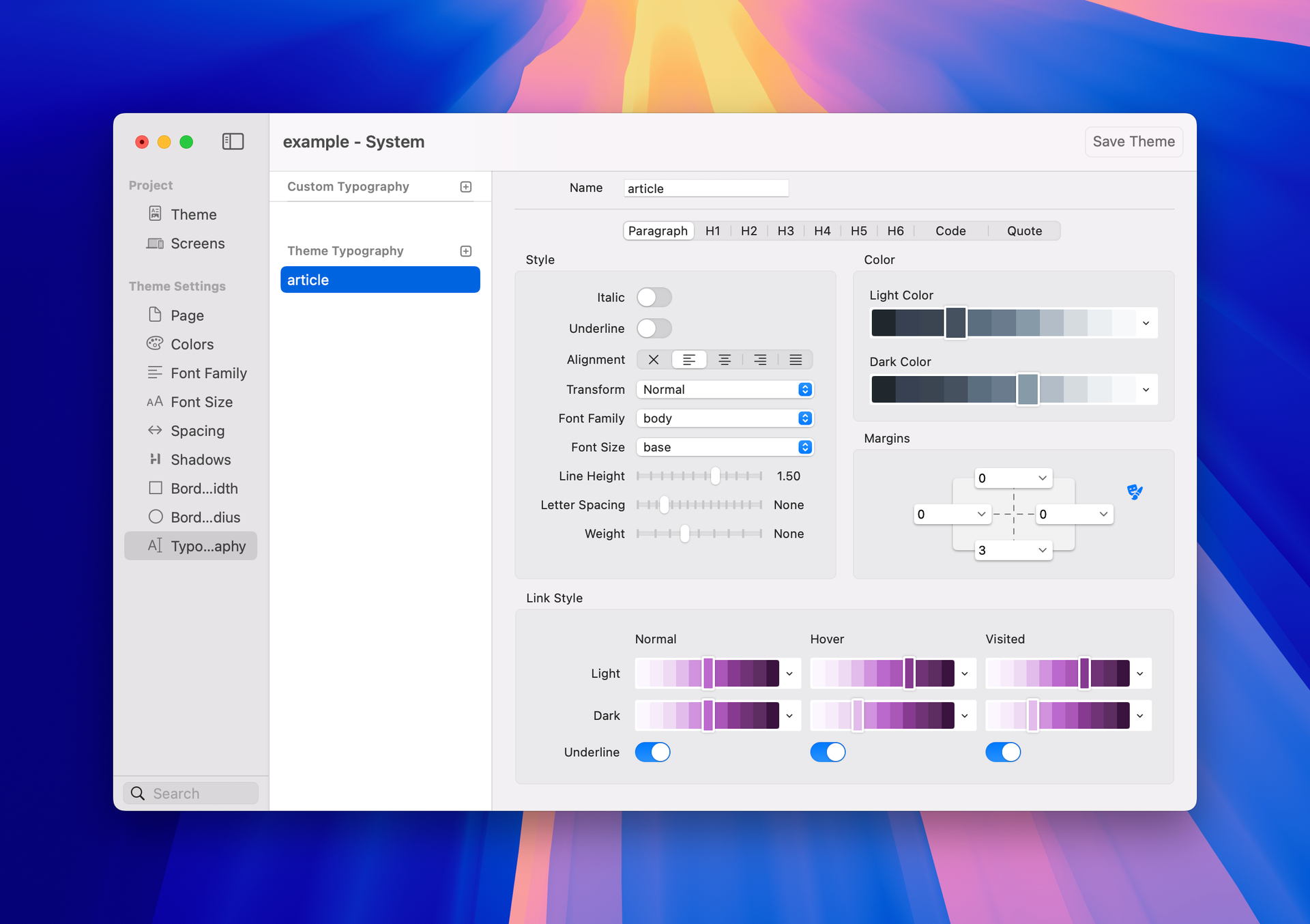
Once you use the Typography component, you can control the styling of things like H1, H2, p, code, etc. via the Theme Studio.
One thing that is not supported in the Typography component / styling are lists. If you want to use and style lists you’ll have to add some custom css code for now. You can do this by adding some code to your project’s template. Something like this would work:
I’m curious as to which component you are targeting with your Markdown files?
I use the Typography component as it seems to handle all of the line breaks and other styling just fine. Of course, it doesn’t support any lists or tables, and you cannot embed images. But other than that, it works fine for me.
All of my Markdown files also originated in Alloy, but I cleaned up the frontmatter.
I haven’t tried this out in depth but I think you can do this.
In the Theme Settings, Select Typography and create a new Custom Typography theme, call it say ‘markdown’.
Then in your Typography Component containing your markdown, in the inspector you can select the Typography Style as 'markdown. Back in your Custom theme you can alter the settings for H1 / H2 / Paragraph etc and they should be applied to your typography component.
Typography, got it. But I still don’t see line breaks. I’ll just ignore lists for now as I’m not sure I follow how to apply the code snippet to the sections I want to have as bullets/lists. Any help on why I’m not seeing line breaks? I’ve double returned in the markdown where I want to see a break between paragraphs.
Make sure in your typography settings in the Theme Studio that you have the paragraph option set up to have a margin after a paragraph. You can set both top and bottom, or you can just use the bottom for your settings.