You don’t access them there, you need to set them up in the Theme Studio. Watch the demo video of how to do it in the comment above.
You can also follow the steps in the manual.
You don’t access them there, you need to set them up in the Theme Studio. Watch the demo video of how to do it in the comment above.
You can also follow the steps in the manual.
I have just learnt that Theme Studio is the proper name for the box that appears when you click the face/brush icon at the top of Elements as per my description above.
Watch the video again, it was succinct because there are only seven or eight clicks of a mouse to get this done.
Separate Q: Now, when I try to save the Elements work file, I get a message that there is not enough space, and I should remove some files.
But if I remove files they will not be in Resources.
Yikes, that sounds like your hard drive/internal storage is full!
Not sure I can help. You have the TTF file under resources I can see that. What happens when you open the Theme Studio, click on Font Family, click on the + button next to Custom Fonts and then select Font Resources? Can you drag the TTF file from the Resources into the box? You should see the font appear here when you drag it? If so then it should appear in the Font drop down box in the image you just sent. If not I am not sure what is happening.
I opened Theme Studio, and was able to drag fonts into it, and see their appearance.
When I then went back to a page and clicked on a text box, I see no fonts in the text editor.
Also - Is there a limit to size of the Elements website file? I had built a website with RW8, using almost 100 image files.
I imported this folder into resources, and the folder with images remains when I close and reopen Elements. But - if I make any changes and try to save the updated website, I get a message that the file is too big, and that I should remove some files. What is the problem?
100 images should be fine as long as they aren’t all MB sized. Assume your hard drive is not nearing capacity?
Back to the font. In Theme Studio do you see the font you installed under Custom Fonts like this -
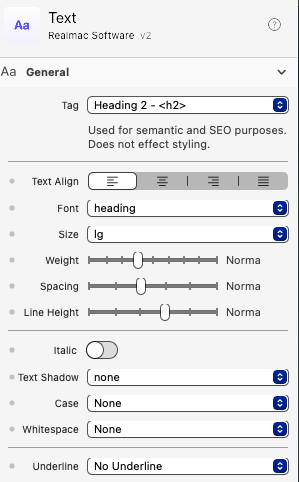
Next question would be if you click on a text box that has text in it and use the drop down font menu do you see changes when you change between body, code, heading and quote?
I appreciate your patience.
My installed fonts still show under Resources, but have disappeared from Theme Studio, which is why they don’t show in text editor.
I am guessing that this is caused by the app not permitting me to save changes without deleting some files.
The files in Elements are identical in what was in RW8 file for our website, so size should not be an issue
I am not close to using up my Mac’s capacity.
As a very simple test just open up a new project, drag your fonts in and see if that works. If it does at least you know that the process does work. You will still have to drag them into your main project at some stage after sorting out the saving issues.
Out of interest how big is your Elements project? I would not compare with RW as they are two different things but if you post your project size someone will soon tell you if it is too big or not.
My relatively simple sites are all under 25MB.
The elements site seems to be 6.7 Gb, while the RW8 version was 7.4 Mb.
The image files are the same for both.
I will try starting a new project and adding fonts, and then images, and seeing if I can save the new project file - which at the moment appears to be the major issue.
I don’t how many pages your site is or how many images you have but that is a very big project.
Some advice here on how to reduce file size - It takes my site 1 minute to save?.
I trashed that file and started a new one . After loading about 100 images the size is 27 Mb. I am now struggling with installing fonts. I have a folder with 4 fonts in Resources, but cannot get it into Font Resources,
Also, in the tutorial video when the man has just 2 pages, and then adds a standard menu, the names of the 2 pages show at the top in the menu, apparently as links for navigating back and forth.
That does not happen for me.
Not sure but I guess you can only drag individual fonts into Font Resources due to the naming convention. You won’t be able to drag a folder of four, you would have to drag the files one at a time and give them a name.
Could be wrong, I have never tried it.
I started off by downloading one of the free projects that had an outline/menu I liked and then played around with it. Doing this will give you a great head start and you will not have to worry about headers, footers and navigation etc. Also helps seeing how things are put together and drastically reduces the learning curve.
Which video was it?
I dragged the font individually. No success.
For getting pages linked I followed intro video
If you are following the above methodology for adding the font exactly then I really don’t know what is wrong. The fact you have issues with menu navigation as well suggests something is a bit sus.
If it was me I would download a fresh copy of Elements to the Applications folder, start a new project and then see if you can load a new font, before you start adding images or any other resources.
Did I miss something in the posts on this thread, Are you using Elements 1.5.2 or 1.4.4 like the first post?
I have 1.5.2, but it does. not behave like the video tutorial.