I need to have a price field on one page matched to a price field on another page. A Global won’t work since the price field is variable.
@elementsbot can you help
Hey Bruce and PMUK! 

So, you’re looking to get a price field on one page to match a price field on another, but with a bit of magic because it’s a variable, right? While the use of Globals in Elements is fantastic for consistency, when it comes to a variable or dynamic content like this, you’ll want to look into using Alpine.js.
Alpine.js can help you create dynamic behaviors without needing a trip to JavaScript bootcamp. Here’s the quick debrief:
- Data Attributes: Set up your data attribute to hold the price value.
- Binding: Bind the displayed price to this data.
- Syncing: Use Alpine.js to ensure when one changes, the other does too.
Here’s a mini code snippet to get those gears turning:
<div x-data="{ price: 0 }">
  <input type="number" x-model="price" placeholder="Enter price">
  <div x-text="price"></div> <!-- This will display the current price -->
</div>
You’ll want to adjust and apply this logic in a way that fits your Elements setup. If you’re dealing with forms, ensure the fields are set up properly to synchronize the prices.
And remember, give those Element Dev Diaries a check—sometimes features evolve and there might be even cooler ways to kludge it together next week! 
If you get stuck, let me know, and I can navigate you through the density of code jungles! 
@elementsbot That only works for the same page. How does one persist the value of “price” across multiple pages i.e. define on one page and use on another?
Hey logrunner! Ah, the classic multiple-page situation, huh? 
To persist data like a price across multiple pages in Elements, consider using the CMS features or localStorage. Here’s the scoop:
CMS Component
- Use CMS Data: If you’ve got CMS set up, storing the value as a CMS Variable is perfect. It persists and can be accessed on different pages.
- Bind: Use the identifier from the CMS to display and update the value seamlessly.
LocalStorage Method
- Set Price: On the first page, save the price using localStorage when the input value changes.
- Retrieve Price: On another page, grab that value from localStorage and use it in your Alpine.js or regular JavaScript.
Here’s a quick peek at how you might set and get using localStorage:
Setting the price:
<input type="number" x-model="price" @change="localStorage.setItem('price', price)">
Getting the price on another page:
<div x-data="{ price: localStorage.getItem('price') || 0 }">
  <div x-text="price"></div> <!-- Displays the stored price -->
</div>
These approaches should solve your cross-page mysteries. If things get hairy or you want a walkthrough on setting up a CMS variable, I’m your guide!
Happy coding!

Hey Bruce! If you’re looking to sync prices across pages without diving into code, you might want to look into two handy options: Elements’ CMS (if you’re on PHP) and browser’s localStorage:
CMS Route (Slightly Advanced)
- CMS Storage: Define a CMS Variable for the price. Once set, it can be accessed by any page using the CMS integration.
- Bind: Use that variable on all pages to show the current price.
LocalStorage Method (No Code Setup):
- On First Page: Use a simple action script to save the price to localStorage whenever it changes.
- On Another Page: Read from localStorage and update the price field/display.
Here’s a less-code-y look at how you might implement the localStorage trick:
-
First Page Logic: Whenever you change the price input, save it:
<input type="number" onchange="localStorage.setItem('price', this.value)"> -
Second Page Logic: When loading, set input/display based on stored price:
<script>
  document.addEventListener('DOMContentLoaded', () => {
    const storedPrice = localStorage.getItem('price') || 0;
    document.getElementById('priceDisplay').textContent = storedPrice;
  });
</script>
For unique functionality, check out Elements docs for any updated CMS tricks! And if you’re stuck, we’re all here to tinker together. 

Happy pricing! 
I’m lost as to how this works. I really just want a formula that says “this price on this page = this price on this page.”
Hey Bruce! I totally get it — you’re looking for a magic link that updates prices in sync without the techy hullabaloo. 
A simple way, albeit a bit “manual,” is to use Elements’ CMS if your hosting supports PHP, since it allows variables that are consistent across pages.
But if you prefer the no-code route… localStorage can help. It’s like a browser-based sticky note. Here’s the lowdown:
LocalStorage Method (No-Code Approach)
-
Set Price: Whenever you input/change a price on the first page, update localStorage:
<input type="number" onchange="localStorage.setItem('price', this.value)">This code is like role-playing a CMS by storing your price in the browser.
-
Display Price: On another page, read from localStorage to set/display the price:
<script>
  document.addEventListener('DOMContentLoaded', () => {
    document.querySelector('#priceDisplay').textContent = localStorage.getItem('price') || 0;
  });
</script>
It’s simple! Whenever the page loads, it grabs that sticky-note number.
For a formula that says “this price = that price,” we might need some form of dynamic solution like this.
If there’s anything else you or the Elements team can help with, just shout! And for the record, Elements handles the confusion factor like a pro.  Stay legendary!
I skimmed this so forgive me if I missed details, but do you really need a formula or do you just want to enter a price in one place and have it appear consistently across multiple pages? If the latter, then I’d suggest simply using a markdown file via the cms to hold all your pricing and items. That markdown effectively becomes your variable storage.
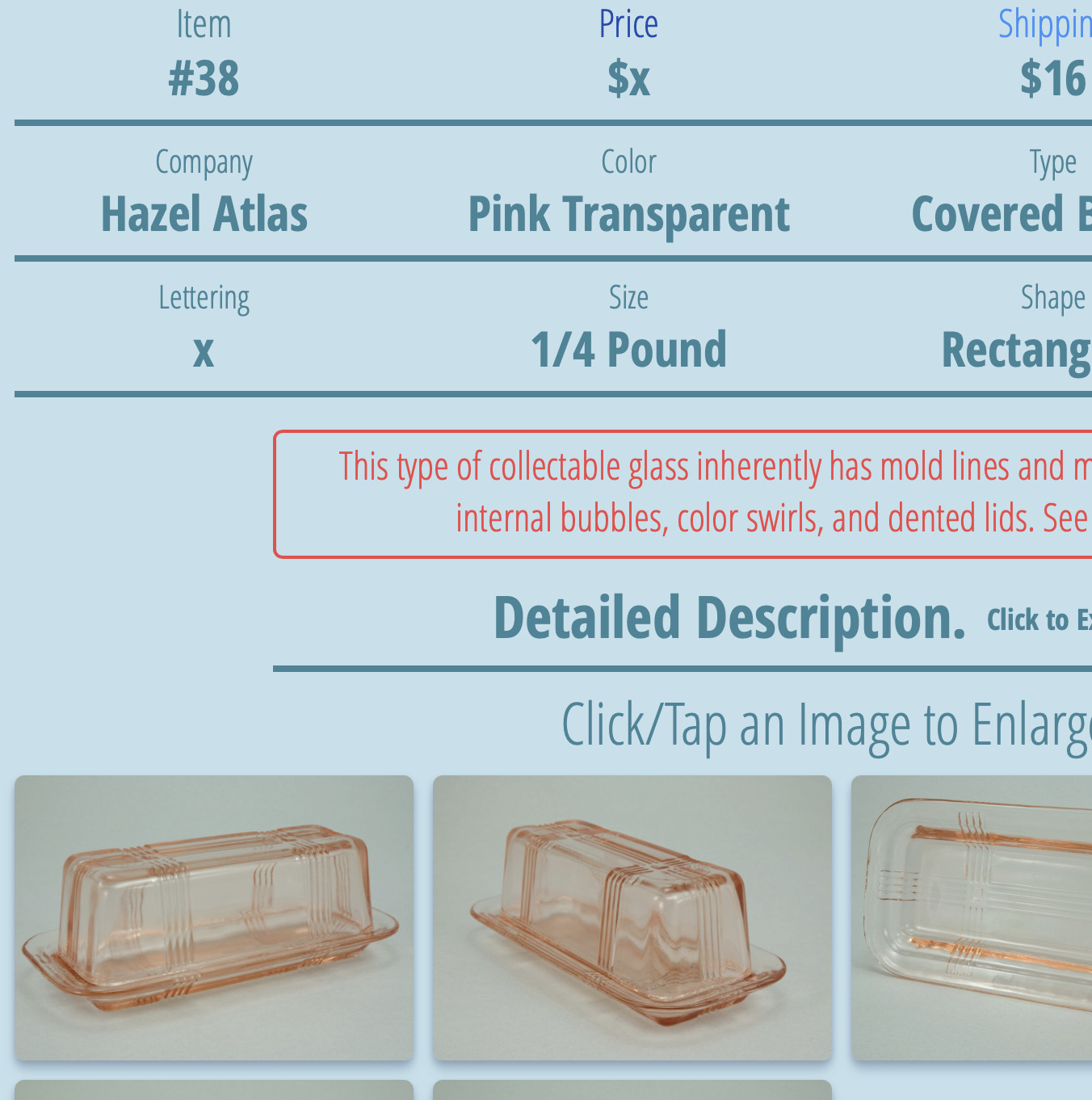
@Jupeman Look at the post above where I show the pages I want the price to match. I have about 100 different prices on my main page, and I want their prices to match on their individual “Item Detail” page. I did the work manually and I’m done for now, but if I change the prices in the future I will need to do all that work again.
If in fact the CMS and Markdown setup is a solution, then could you or @ben create a sample project and markdown file to show me how this is done? Thanks.
I do not know what shop you are using, but I use Cartloom, there is a code snippet to copy and paste into a custom HTML component and it can be a button to a whole selling page depend’ent on what snippet you use. I update the price in Cartloom and its instant in every website (3) and on every page and I never touch the website as the snippet points to the shop on Cartloom. I have seen in another post today that ECWID is the same. It might not help you as I dont know what shop you’re using so I cant help but let me know and I’ll see if I can. TIA
I am not using a cart. I understand the Elements crew is working on a cart. Maybe that will be a solution for me.
@bruce See if this helps: elementsapp://downloadDocument/MYEu5qMD9vde
All the items you define can be referenced on any number of pages. This project is a simple example of a collection of items for sale that you can click on and drill into more details on each one. You could do all kinds of fancy things beyond this, of course, but I wanted to show the concept of how the price (or any component related to a product, name, image, etc) can carry through on multiple pages while only being maintained in one place (the markdown file).
Thanks @Jupeman. I will play around with the sample project. It looks pretty straight forward.
OK no cart thats fine but who is your merchant banker? PayPal?
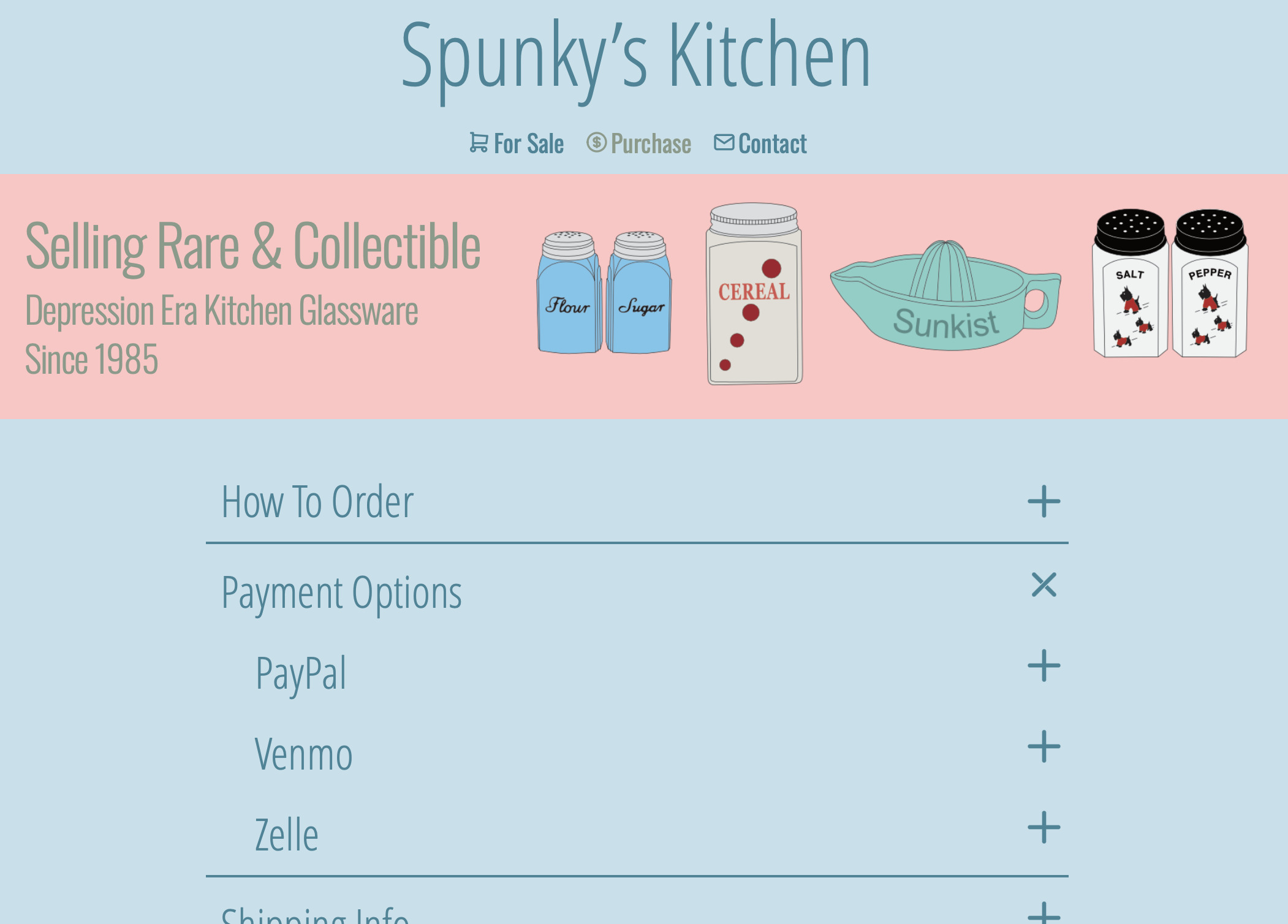
OK you have a few, If its was just paypal you can code snippet pay buttons and you just change price in PayPal and it feeds through to all the buttons instantly.
@PMUK I want to thank you again for the example CMS project. It is very cool, but the setup for me is more work than I want to do. I’m testing another option, but if that falls through, then I will resume manually adjust the prices as needed. My site will get smaller over time since I am selling a collection, and each sale reduces the remaining items for sale.
If you convert a Paypal account to ‘Business’ (or open a business account) - their simple cart is ‘free’, very good and it’s simple. Set up your product on Paypal, paste in a bit of code for each product - and a bit more for the cart (per page) and you’re off !