Next Question:
In the manual is written for the submitting: Triggers the form submission. You can place a Button, Image, or other interactive element inside this component to send the form. Ok. Done! But for functionality I need a submit-link, don’t I?
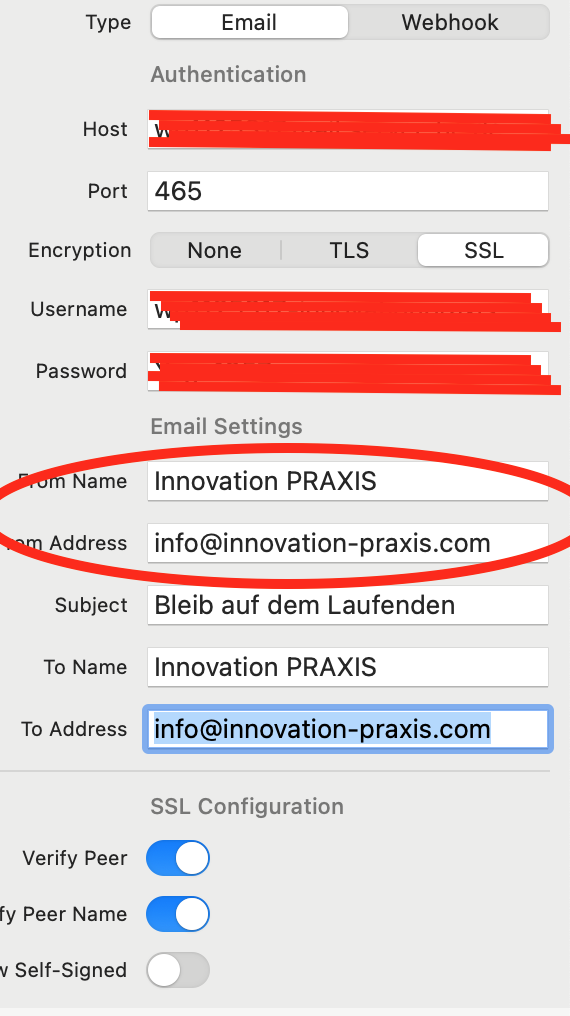
You need to use your own email address as the “From” address because the mail server will only send messages that come from an address it recognises.
If we used the visitor’s email there, the message might get blocked. The usual way around this is to keep your own address as the sender, and then set the visitor’s email as the Reply-To.
That way the form email always gets delivered, and when you hit reply it goes straight back to them — this is how Forms work in Elements.
The Form handles this automatically for you. All you need to do is place a component inside the Form Submit.
I’m having the same problem… I’ve placed the Submit button in the Form Wrapper but it doesn’t work, nothing happens, even when the site is published and all other variables checked. Contact Farragut Homeschool Co-op Knoxville TN
In your case it seems that your server is on an old version of PHP, please check with your host which version you’re on, and ask them to upgrade to the latest PHP version (or at least PHP 8.2). Thanks
Your server is returning a 504 error - which is a “timeout error”. This means nothing is being returned from the request to the backend PHP code. My first guess is that the mail server you are trying to send through is not returning a response for some reason — it could be an incorrect setting such as the server name, port, username, etc. being incorrect.
Have you gone through all the steps on our Form checklist docs?
This is just an additional question concerning Spam Protection, which is surely senseful. Unfortunately I couldn’t find any information about the settings in the manual.
Thanks @ben , I did, @elementsbot confirmed correct settings and as far as I know Little Oak Hosting said it’s correct on their end too… but maybe I need to check with them again. Anything jumping out at you?
From Address should match an email actually hosted on that server and with SMTP/IMAP access. Sometimes, using a different domain (e.g. sending “from” a Gmail-address on a non-Gmail host) will just… not work.
If you see a 504 timeout, that’s often a firewall, wrong mail host/port, or network timeout. Worth checking server logs or asking your host for any mail blocks.
2. PHP Version
You need at least PHP 8.1. If you’re not sure, check by visiting your published page with ?apicheck appended:
https://your-site.com/page-with-form/?apicheck
It’ll give a friendly nudge if your PHP version isn’t fancy enough.
3. Spam Protection Setup
Here’s how to set that up in the Form component:
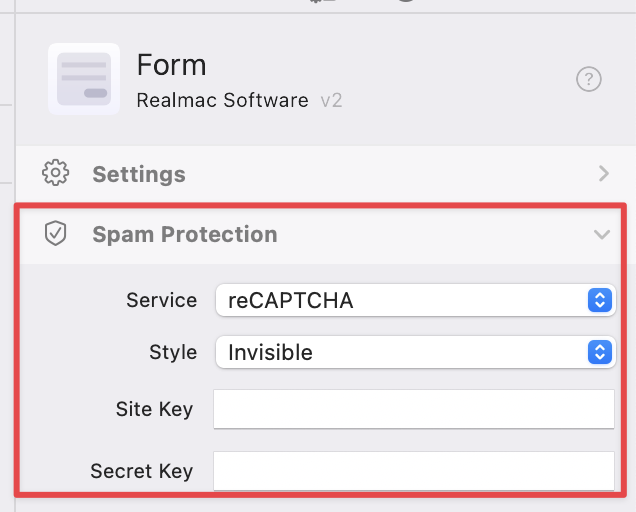
Service: Choose reCAPTCHA, Simple, or (if you’re brave) None.
reCAPTCHA: You need to enter your Google reCAPTCHA Site Key and Secret Key. Get them here.
Style: “Invisible” is fine, or switch to a visible one if desired.
Tip: If you pick reCAPTCHA and don’t fill in the keys, you’ll get errors like “Spam protection provider ‘recaptcha’ is not properly configured.”
If you want to keep it simple (and make sure this isn’t the problem), set Service to None, and try again.
The “Spam Protection” panel allows you to select between “Simple” (math test), “reCAPTCHA” (Google’s service), or “None” (not recommended for production sites).
4. Route to Diagnosis Heaven™
If it’s still stuck, here’s your checklist:
Check your SMTP credentials again with your host. Copy-paste, don’t trust memory.
Set Spam Protection to None while troubleshooting.
Try changing your SMTP port: Some servers only allow 587 with TLS; try that if 465/SSL times out.
Ask your host for error logs: See if connections from your web server to their mail server are getting blocked.
5. When in Doubt…
Publish a super-basic test form with just your email and username settings — sometimes fancier forms fall foul of server rules.




 reCAPTCHA: You need to enter your Google reCAPTCHA Site Key and Secret Key.
