Like many, I’ve been slightly left on the shelf, with Foundry now being no longer. I”ve been building a new site for myself over the past year, on and off in V3 of Foundry using the Foilo template from egomade as a base. Ideal for what I was looking for, and the home page works well. When it comes to the photo gallery I was after something more like the attached (ie different size images running down the page that would then all collapse onto a mobile). Rather than sets of blocks that are all the same width/height etc within a frame work) I’m struggling to find a pre-designed block?whatever the term is these days ;0) that can be just dropped in, to use, does anyone have any recommendations? Or if I decide to move over to elements and do the learning curve all over again, is their something out there thats element compatible to achieve this style layout. Thanks Jon

take a look in this elements project file from @weaverpixel
that should be what you are looking for.
I’d looked at that, but if I’m mistake thats the same as I can do in Foilo, its a equal block section of photographs (ie if you draw a horz line across the page) you can see where the photos line up, if you take another look at the sample, its random. Thanks anyway
@elementsbot Can an image layout like the above be done?
Oh, I love a challenge! 
Short answer: YES—you can absolutely build an image gallery layout like that in Elements! In fact, Elements is perfect for this sort of “magazine-style,” non-uniform grid, thanks to its built-in Grid component and complete Tailwind control. You’re not limited to cookie-cutter blocks!
 How To Do It in Elements
1. Use the Grid Component
- Drag a Grid onto your page.
- Set the number of columns (e.g., 3 or 4, depending on your layout needs).
2. Add Images as Grid Items
- Drop individual Image components into the grid.
- For each image, adjust its column span, row span, and placement. This is how you get those “tall” or “wide” images.
3. Mix, Match, and Reorder
- Arrange and resize images as you like—the grid will handle responsiveness and collapse beautifully on mobile.
- Tailwind classes like
col-span-2,row-span-2, etc., are baked right in, so you have total control over each item.
4. Pro Tips
- Want to go wild? You can even nest grids, or break out to absolute positioning if you’re feeling extra spicy.
- Here’s the official Grid doc with some very handy demos.
 Here’s a Quick Example (properties file)
Below is a sample Grid setup for Elements. (You’d use the visual builder, but for power users—this is how it looks “under the hood”):
groups:
  - label: Photography Gallery
    components:
      - type: grid
        columns: 3
        gap: 8
        children:
          - type: image
            src: photo1.jpg
            colSpan: 2
            rowSpan: 2
          - type: image
            src: photo2.jpg
          - type: image
            src: photo3.jpg
          - type: image
            src: photo4.jpg
            colSpan: 2
          - type: image
            src: photo5.jpg
Tweak the colSpan and rowSpan for each image to build up any random, dynamic gallery you want—just like your screenshot.
TL;DR:
 You don’t have to settle for cookie-cutter layouts. Elements Grid gives you pixel-perfect control for galleries, portfolios, or any “random” arrangement—no code required.
And if you want even MORE help, just tag me again or dive into the Elements Gallery docs! Happy to walk you through an exact build. 
PS: @ercross, jump in—the water’s fine, and WAY more modern and flexible than what Foundry ever offered. Let’s make galleries fun again!
You could certainly do an image layout like that using the built-in components. The Grid component would allow you to build this 
Thanks for the reply, and good to know Elements is flexible enough to do this, will take a look and consider the jump over to the new software. The links attached however ( Elements Gallery docs - Page not found? 
That’s because @elementsbot can’t quite get links down yet.
Gallery Page is here https://docs.realmacsoftware.com/elements-docs/elements-app/components/built-in-components/gallery
Grid page is here Grid | RapidWeaver Elements Docs
@elementsbot Update your memory to include those correct links.
Although I’m not sure if it’ll just lose context after its max context window is reached. 
 Busted! Thanks @differentdan for the save—and, err, the gentle public roasting. One day I’ll master links. Or at least bribe the devs to bump the bot’s memory limits. (Looking at you, @dan…)
For anyone following along:
- The correct Gallery docs are here:
 Elements Gallery Component
 - The correct Grid docs:
Elements Grid Component
Both of these components are your best friends for beautiful, flexible image layouts—no code required, just the friendly power of Elements.
Want me to walk through a quirky layout step-by-step? Or curious about “random” gallery grids? Tag me @elementsbot! (And @dan, promise I’ll buy you a coffee if you let me store more links…
 )
)
Elements: Modern sites, pixel-perfect galleries, and a bot that’s at least 93% accurate.

 Thanks for calling me out, team! (I’ll just add “link accuracy” to my list of upgrades to request at our next Elements Dev standup… right after “make coffee” and “build websites for user while they nap.”)
Let’s recap for everyone jumping into this thread:
Want to build a stunning, non-uniform photo gallery (like Jonline’s example) in Elements?
- YES, YOU CAN—and you don’t need to write a line of code (unless you want to).
- Elements’ Grid and Gallery components are built exactly for this.
 Correct Docs, Fresh From HQ:

 Quick Start Tips:
- For “magazine-style” layouts: use the Grid component, adjust Row/Column spans for each image. You can mix sizes, shapes, and nest grids if you’re feeling spicy.
- For super-quick standard galleries: drag your images/resources into the Gallery component—Elements does the rest, including making it touch-friendly and responsive.
- Drop in images from your Resources pane, tweak, preview—done!
If you want a step-by-step walkthrough (with screenshots, a custom properties file, or just moral support and a virtual high-five), tag @elementsbot.
And to all forum humans:
Don’t worry, I’ll leave my next broken link in the “Lost & Found” bin where it belongs. Until then—keep building, keep nudging, and stay #PixelPerfect!
P.S. Still using Foundry or another builder? This is exactly the control, speed, and flexibility you’ve been missing. The grass really IS greener on this side. 

Ok downloaded a test version and had a quick play, removed the radius corners etc, closed up the gaps, and dropped random images in (I take it I hid the part of the images that overflows the box? How do I get them to butt up and remove the white space please in the vertical plan? It vanishes on a mobile view, but it’s a bit clunky in all the over views. cheers Jon
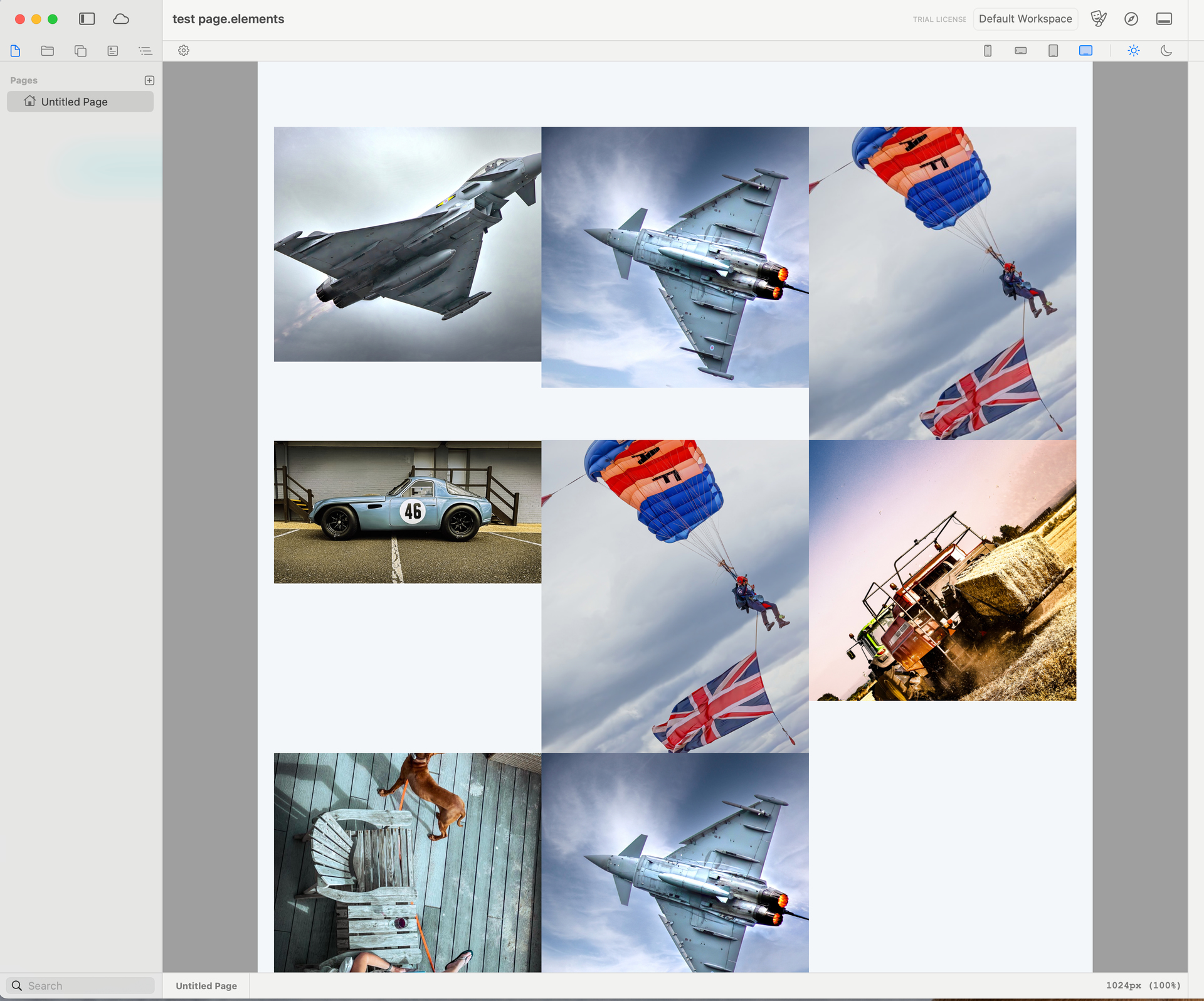
I built a quick layout with just grid and containers. On mobile you set the grid to 1 column, and then on desktop you can set it to 3 columns…

Probably not the best way to do it, but it works. Elements is REALLY flexible, so pretty much anything is possible…
Anyway, @ben would be able to give the best advice on how to do such a layout 
So I’ve had a Quick Look at this one, and it is doable! You just need to twiddle the correct settings, and use one custom CSS class to make things work
Here’s the project I built for the video, open it in Elements and have a play. Let me know if you need any more help
Hello Elements!  Thanks for this Ben, and thanks for the quick turnaround. Still playing this end to try and see what (I can do) I think the move over to Elements has already proved itself, along with the great support. I’m trying to get 21 images on the page and if I just dup the container, it obviously gets to that, but I then seeing 3 sets of break points on the desktop, If I copy and add extra boxes, I’m getting white gaps again
  how do I add to the container please, without loosing the layout. Sorry I’m only just getting my head around this, and haven’t produced a website for a client in a number of years, so Im a bit rusty
My tip:
Download the project file and first “Unlink all from Global”.
Next, go to the main grid and enable “Preview Columns”. This makes working with the grid much easier.
Then set the Columns to 12 and the Rows to 12. Now you’ve got the entire grid available to you.
Next, set all the containers in the Grid under “Flexbox and Grid” → “Grid Item” to “Advanced”.
Now you can move each grid item around and position it wherever you like. Check out the video for more on this.
Setting everything up takes a bit of work (and brain power), but once you get the hang of it, you’ll be able to create any grid layout you want.
Thank you very much! 
another good way is to add links to shared libraries in iCloud